How to remove background noise from audio.
Hiss, hum, fan drone and room rumble can ruin an otherwise good recording. Clean it locally in your browser without uploading the selected recording to AudioWrench or creating an account.
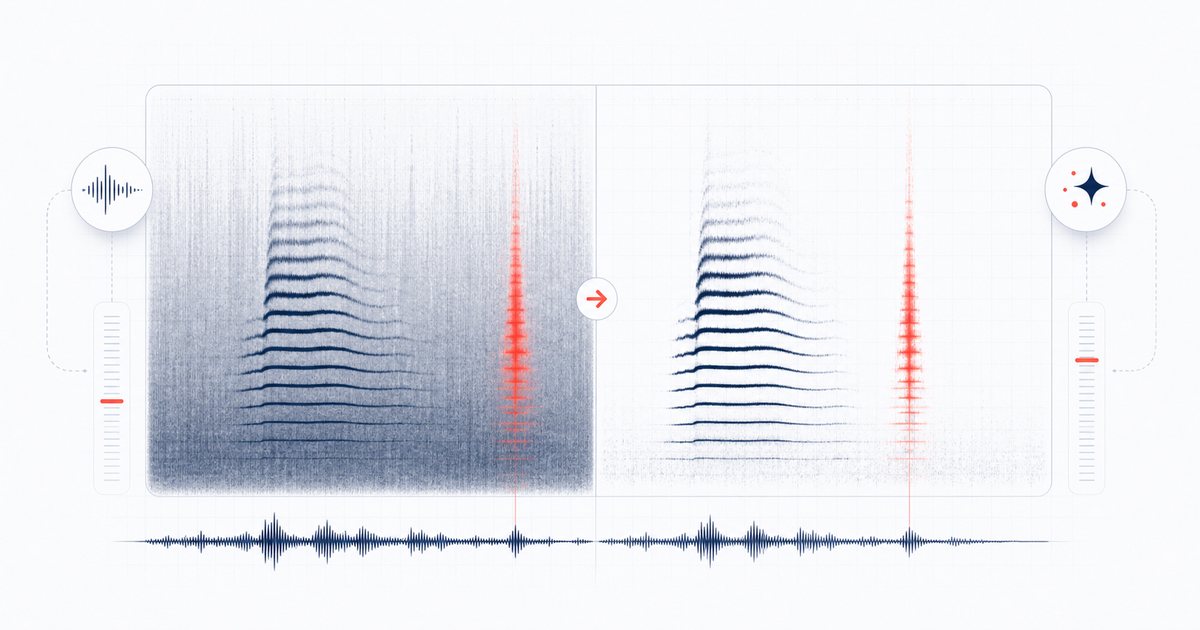
What background noise actually is
Most of the unwanted sound in a recording is steady, low-level noise: tape hiss, a 50/60 Hz mains hum, the constant whoosh of an air conditioner or laptop fan, wind across a microphone, or the deep rumble of a room. Unlike a voice, this noise rarely changes — it sits underneath everything you actually want to hear. That predictability is exactly what makes it removable.
The technique that targets it is called spectral noise reduction. Instead of just rolling off treble (which dulls your audio), it analyses the recording in tiny overlapping frames, builds a profile of the constant noise floor, and subtracts that profile across the whole file. The voice or music — which is louder and constantly changing — survives, while the steady hiss in the background drops away.
How to remove background noise step by step
The AudioWrench Noise Remover handles all of this for you, and it does the whole job locally on your device. Here is the exact flow:
- Open the tool. Head to the Noise Remover. There is no sign-up — the page is ready immediately.
- Drop your file. Drag an audio file onto the dropzone (or click to browse). It decodes on your device and the player shows the duration, channel count and sample rate so you know it loaded correctly. Hit play on the Before player to hear the original.
- Set the reduction strength. In the Noise reduction panel, drag the Reduction strength slider. It runs from 0.20× up to 3×, starting at 1×. Lower keeps the audio natural; higher digs deeper into the noise floor.
- Apply. Open Preview & download and click ✨ Apply noise reduction. The tool learns the noise floor from the quietest 10% of the recording and cleans each channel — large files take a few seconds.
- A/B and adjust. Play the After player and compare it against the Before. If voices sound watery or hollow, lower the strength and apply again. If noise still leaks through, push it higher.
- Download. When it sounds right, use the download buttons to save the cleaned file (named with a "(denoised)" suffix). Done.
A quick tip the tool itself surfaces: the cleanup works best when your recording contains a little silence — a second or two of room tone — so the algorithm has a clean sample of the noise to learn from.
Getting the best result
The single most common mistake is reaching straight for maximum strength. Aggressive reduction creates artefacts: that underwater, "swirly" quality engineers call musical noise. The fix is restraint. Start at 1×, listen, and only raise the slider until the background just disappears — then stop. A recording that is 80% cleaner and still sounds like a human voice beats one that is dead silent but robotic.
Spectral reduction shines on constant noise. It will not magically erase a one-off door slam, a passing siren, or a cough, because those events do not match the steady noise floor it profiled. For long stretches of dead air between speech, pair this with a silence remover; to tame a boomy low end first, a quick pass with the equalizer can help the noise reducer focus on what is left.
Why do it in your browser?
AudioWrench processes the selected interview, voice memo, podcast take or song on your own device through the browser's Web Audio API and does not upload that recording to AudioWrench. Ordinary page assets still load as described in the privacy notice. There is no account or cost; for highly sensitive recordings, you should still assess the security of your device and browser.
It is also fast and offline-friendly: once the page has loaded, you can clean file after file without a network round-trip, and there are no upload size limits beyond what your own device can handle.
🔇 Try the Noise Remover (free) →
Common uses
- Podcasts & interviews — strip out fan hum and room rumble before editing.
- Voice memos & lectures — make a phone recording from a noisy room easier to follow.
- Music & samples — clean hiss off an old cassette or vinyl rip before mastering.
- Video voiceovers — give narration a clean, professional bed before you mix.
FAQ
How do I remove background noise from audio for free?
Is my audio uploaded to a server when I clean it?
What kinds of noise can it remove?
How much reduction strength should I use?
Sources and review notes
Spectral subtraction works best on steady noise. Strong reduction can create musical-noise artifacts, and changing interference or room echo may remain.
- W3C AnalyserNode — Browser time- and frequency-domain analysis.
- FFmpeg audio filter reference — Independent reference for established denoise, dynamics and silence-processing concepts.