Do binaural beats work? A plain, honest answer.
Short version: the stereo illusion is real, but evidence for dependable focus, sleep or health outcomes is mixed. Here is how binaural beats are made and what the preset labels actually mean.
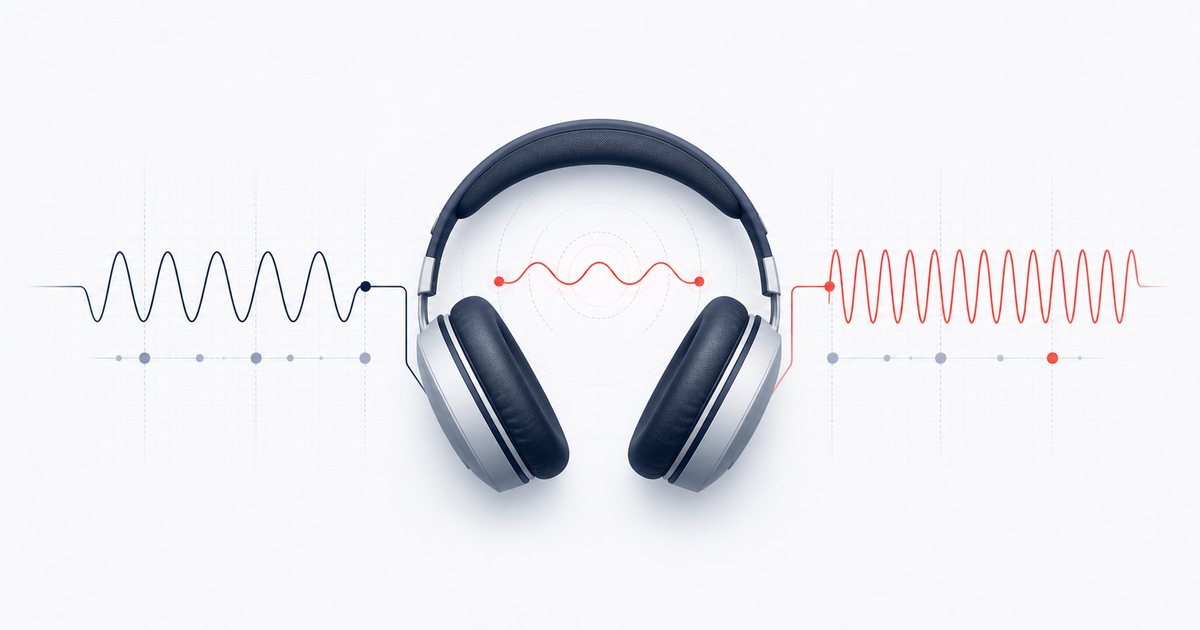
A sound presentation is not proof of a mental state
Binaural presentation sends different tones to the two ears. A listener may perceive beating at their difference; perception varies. For example, 200 Hz left and 210 Hz right have a 10 Hz difference. That does not put a separate 10 Hz sine into either channel, and the generator does not measure EEG.
A 2023 systematic review of EEG entrainment reported inconsistent findings and heterogeneous methods. It did not validate this product, and an EEG question is not the same as a clinical or everyday focus/sleep outcome. There is no guaranteed mental-state result from selecting a preset.
Use this as a configurable audio experiment or a sound you personally prefer. A preset name is a convenient frequency label, not a prescription. If a tone is unpleasant or distracting, stop rather than treating discomfort as evidence that it is working.
Make a controlled stereo session, step by step
The Binaural Beats workspace generates the sound locally. There is no source file or microphone to provide. Its controls describe the same tone graph used for a new exported session.
- Prepare separate, low-level stereo playback. Use stereo headphones or earbuds and start with a low device output volume. Check that a player or accessibility setting is not combining left and right into mono. The app starts at Volume 10%; this is not an at-ear safety calibration.
- Name both frequencies. Set Carrier number or Carrier frequency to the left tone, from 50 to 500 whole Hz. Set Difference number or Difference frequency from 0.5 to 40 Hz in 0.5 Hz steps. Right equals carrier plus difference. The three readouts show left, right and their arithmetic gap.
- Choose digital levels, not a promised outcome. Delta 2 Hz, Theta 6 Hz, Alpha 10 Hz, Beta 20 Hz and Gamma 40 Hz set only the difference. Volume scales the entire stereo signal; Background pink noise adds a common layer. Zero Volume is silence in both preview and file. At larger differences you may hear separate tones rather than a slow pulse.
- Set the playback timer, then explicitly start. Choose Off, 5, 15, 30 or 60 minutes of audio-play time and press Play stereo tones. Stop all audio or Escape immediately retires that graph. Changing the timer while playing restarts the session; frequency and level edits retain the existing stop deadline.
- Inspect the calculated channel plan. The solid left trace and dashed right trace show tone-only samples over 20 ms on a fixed ±0.5 amplitude scale. Volume changes their height; zero produces flat lines. Pink noise and fades are not drawn. This picture is not recorded sound, a phase-correlation meter or brain activity.
- Save a new, current session. Choose File duration independently of the playback timer: 10 or 30 seconds, or 1, 5 or 10 minutes. Download WAV or Download MP3 renders a fresh stereo file with the current frequencies, Volume and noise. Continue editing offers a local WAV handoff. Check the resulting channels and duration in the destination player or editor.
Open the current stereo workspace →
Worked frequency differences: carrier is not the beat
Use right = left + difference. Moving the carrier changes both tone pitches; it does not change the selected difference. Moving the difference changes the right tone relative to the left. The inverse-difference time below is arithmetic context, not a measured percept or EEG cycle.
| Left carrier | Difference | Right tone | 1 ÷ difference |
|---|---|---|---|
| 100 Hz | 0.5 Hz | 100.5 Hz | 2 seconds |
| 200 Hz | 10 Hz | 210 Hz | 100 milliseconds |
| 440 Hz | 20 Hz | 460 Hz | 50 milliseconds |
| 500 Hz | 40 Hz | 540 Hz | 25 milliseconds |
Example: Carrier 200 Hz plus Difference 10 Hz gives 200/210 Hz. If you change only Carrier to 300 Hz, the pair becomes 300/310 Hz and the difference remains 10 Hz. If instead you keep Carrier 200 Hz and choose Difference 6 Hz, the pair becomes 200/206 Hz. The labels let you reproduce a technical setting without claiming a reproducible psychological outcome.
Stereo versus mono: preserve the presentation you intended
With Background pink noise at zero, the generated left channel contains its sine and the right contains the other sine. Both have steady tone amplitude between fades. With noise enabled, the same noise layer is present in both channels, alongside their separate tones.
A mono fold-down such as mono = (left + right) / 2 puts both audible tones in one signal. Their interference can produce acoustic or monaural beating, but that is not the same separate one-tone-per-ear setup. Speakers let sound from both channels reach both ears, and a device’s mono accessibility option can mix a stereo file before it reaches headphones.
For a controlled stereo experiment, keep both channels when importing the file. Do not export a mono derivative and still label it as the original separated presentation. A widening plugin, surround mode or crossfeed can also change the signals reaching the ears. The generator cannot inspect your headphones, routing or player settings; its channel readouts describe the generated file, not your physical listening system.
What Volume actually does to preview and file
Each tone uses a fixed 0.5-amplitude gain before the master Volume. A tone-only configured peak is therefore 0.5 × Volume, where 10% means 0.1. Moving from 10% to 80% multiplies amplitude by eight, about 18.06 dB. This is a calculation in the digital signal, not a claim that a listener hears “eight times as loud.”
- Volume 0%
- Both channels are exactly silent. Export retains that zero rather than substituting an audible default.
- Volume 10%, no pink noise
- Configured tone peak 0.05, approximately −26.02 dBFS, before edge fades and file quantization.
- Volume 80%, no pink noise
- Configured tone peak 0.40, approximately −7.96 dBFS. It is not normalized back to a fixed peak.
Pink noise is mixed at up to half its layer amplitude. Its two-second palette has attenuation-only protection if its peak exceeds 0.8; quieter palettes are not raised. At the 44.1 kHz generation rate the planned absolute bound is Volume × (0.5 + 0.4 × noise). This headroom rule is not a calibrated sound-pressure measurement or a true-peak certificate. Native device resampling and lossy encoding can change individual samples.
Digital dBFS and this app’s percentage cannot tell you the sound pressure at your ears. Headphone sensitivity, output hardware and the device volume also matter. WHO safe-listening guidance emphasizes listening level and exposure duration. Keep the device low, take breaks and stop if uncomfortable; ask a qualified clinician about personal health concerns. Do not use distracting audio while driving or operating machinery.
The timer counts audio-play time, not wall-clock time
On Play, the graph schedules its fade and the native source stops at an audio-clock deadline. An ordinary page timeout is not responsible for making the tones silent at that deadline. The displayed elapsed and remaining times also follow the audio clock, not a count of screen refreshes.
If the browser or operating system suspends audio, the clock can pause; five selected minutes are not guaranteed to end five real-world minutes later. A hidden tab may keep playing if its audio context is still running. This is a sound-session timer, not an alarm or a guarantee about sleep.
- Carrier, Difference, Volume or pink-noise edit: updates the playing graph while retaining its current deadline. Nonzero master level changes use a short ramp; selecting zero mutes exactly.
- Playback timer edit: retires the old graph and starts a fresh preview and timer. Select Off to begin a new untimed preview, then stop it manually.
- Stop all audio or Escape: mutes, stops and disconnects this graph immediately, including a pending start attempt.
- Leaving and returning: leaving stops the owned audio and invalidates pending files. Returning does not autoplay; press Play again when you want sound.
The timer’s last 0.5 seconds fade to zero. These scheduled source and gain operations are browser primitives, not medical or device-latency certifications. If output cannot start, check the selected output device and retry the visible Play action; do not raise volume to compensate for a browser error.
Export a current session, then verify the destination
File duration is independent of Playback timer. For example, a five-minute preview timer does not make a selected ten-second export longer. A new file begins at session time zero with 0.5-second fade-in and fade-out; it is not an audio recording of what has already played in the tab.
Preview and file use the same graph recipe and the same page’s pink palette. A 48 kHz native output device can resample that palette, while files are generated at 44.1 kHz. Pink noise repeats a two-second, seam-crossfaded pattern; it is not ten minutes of newly drawn random noise. Faded sessions and destination players are not promised to loop without a gap.
| Duration | 44.1 kHz stereo 16-bit WAV | 320 kbps MP3 estimate |
|---|---|---|
| 10 seconds | 1,764,044 bytes · 1.68 MiB | 0.40 MB |
| 30 seconds | 5,292,044 bytes · 5.05 MiB | 1.20 MB |
| 1 minute | 10,584,044 bytes · 10.09 MiB | 2.40 MB |
| 5 minutes | 52,920,044 bytes · 50.47 MiB | 12.00 MB |
| 10 minutes | 105,840,044 bytes · 100.94 MiB | 24.00 MB |
WAV is uncompressed 16-bit PCM with separate left/right channels. Its size is 44 + seconds × 44,100 × 2 × 2 bytes for this writer. MP3 is stereo 320 kbps, lossy, and may have encoder delay or padding; its final duration and sample values can differ slightly when decoded by a player. The estimate uses decimal MB; WAV figures also show binary MiB.
Generating and encoding audio needs more memory than the final compressed file. The workspace estimates working memory before rendering. If the selected length exceeds the device’s audio budget, choose a shorter File duration and retry. The ten-minute choice is not a promise that every phone or browser has enough memory; a ten-second sample is useful for checking routing first.
When settings change while a file is rendering or encoding, that obsolete job must not publish a download under the new frequencies. Discard pending file also prevents publication. Native rendering or encoding may finish privately before the buttons become available again; it is not advertised as an immediate compute abort. Download again after that job clears to create the current settings.
Continue editing prepares this WAV for a local workspace on the current device, subject to browser storage, for up to 24 hours. It is not an upload or an automatically mixed song. If storage fails, use normal Download WAV/MP3 and import manually. A downloaded file can be retained independently of temporary browser storage.
After import, check stereo channel count, expected left/right frequencies, duration, edge fades and level. Avoid normalization, auto gain or a mono conversion if your aim is to preserve the configured experiment. The generated filename names left/right frequencies, seconds, Volume and pink level, so a later setting change does not silently relabel old audio.
Troubleshoot the signal, not a promised effect
- I cannot hear anything.
- Check Volume: zero is intentionally silent. Then check device volume/output routing and the visible start/error status. Retry Play if the browser did not enable audio. Do not infer a hearing threshold from this uncalibrated generator.
- I do not perceive a slow beat.
- Confirm stereo delivery and two different readout frequencies. Perception varies, particularly at larger differences; the arithmetic gap is not a guarantee of a particular sensation.
- The file is silent.
- Read its generated name and the current-file plan. A file made at Volume0 is silent by design. Later raising Volume does not change a file already downloaded; export again for the new settings.
- The timer appears paused.
- Browser/device audio suspension can pause the audio clock. The timer is not a wall-clock alarm. Stop, then explicitly restart when audio output is available.
- Export failed or the file did not appear.
- Read the retained error message; shorten File duration if memory is the issue. An obsolete/discarded job intentionally produces no download. Retry after the current job clears, or download normally if local handoff storage fails.
- The plot looks nearly flat.
- It uses a fixed ±0.5 scale; a quiet tone has a small height, and zero is flat. The calculation excludes pink noise and fades. This is not evidence of weak brain entrainment or a broken microphone.
FAQ
Do binaural beats work?
Do I really need headphones for binaural beats?
Which frequency should I pick for focus or sleep?
Is the AudioWrench binaural beats tool free, and is anything uploaded?
Does Volume0 remain silent in the downloaded file?
Does a five-minute timer force a five-minute export?
Sources and review notes
The 2023 review concerns EEG entrainment evidence, not validation of this generator or a clinical prescription. The practical examples describe the current local graph and digital file, not measured brain activity or acoustic safety. A playback timer follows the audio clock, not guaranteed wall time.
- 2023 review of binaural-beat EEG entrainment — Inconsistent EEG findings and heterogeneous methods; not a product-specific treatment or focus/sleep guarantee.
- WHO safe-listening guidance — Listening level and exposure duration matter; a browser gain percentage is not calibrated at-ear sound pressure.
- MDN: scheduled audio stop — Native source deadlines use the audio context timebase; this does not certify device latency or a wall-clock alarm.
- MDN: cancelling gain automation — Scheduled parameter changes and ownership; distinct from clinical or listening-outcome evidence.