Audio Watermark & Voice Tag Maker
Overlay a spoken tag, producer drop or sonic logo at the start, end, repeated intervals or exact timestamps. Duck the main track only under each tag, compare A/B and export — this is branding placement, not joining files in sequence.
TIMELINE MAP
Watermark Placement Lane
Turn one long waveform into deliberate boundaries. The visual emphasizes the selection, transition and resulting edit so that timing decisions remain obvious before anything is rendered.
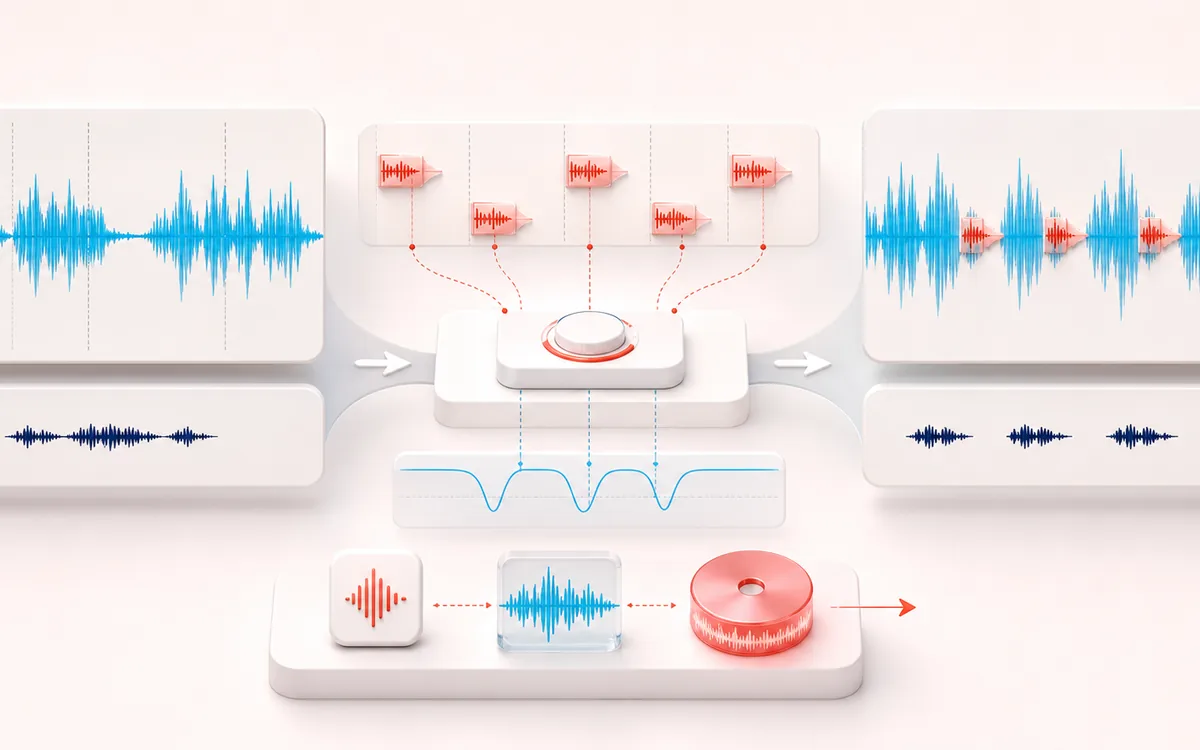
Open the full signal breakdownBest source, processing logic, limits and three-pass listening check
- Program and voice tag
Start with the right material
Podcast previews, beat demos, client review files, DJ drops and other audio that needs an audible ownership or identity cue.
- Place and duck tags
Understand the transformation
The tag is gain-shaped and mixed at bounded placements while optional ducking lowers the main audio only around each tag.
- Branded audio
Verify the usable result
Original and processed comparison plus a WAV or MP3 containing the chosen tag placements, fades, level and ducking.
Where this workflow stops
An audible watermark is not DRM and can be edited out. Repeated or loud tags can damage intelligibility, so preview every placement before publishing.
Make the final decision by ear
- Zoom into every boundary and listen across it, not only inside it.
- Leave intentional handles when another editor will continue the work.
- Verify exact duration and ordering after the final render.
How to add an audio watermark online
- Load the main audio. Choose the complete beat, song preview, podcast or other track that should carry your branding.
- Load a short watermark. Use a voice tag, producer drop, station ID or sonic logo you own or have permission to use.
- Choose placement and mix. Put it at the start, align it to the end, repeat it at an interval or enter custom timestamps. Set tag gain, duck depth, attack/release, fades and stereo behavior.
- Render and listen. Compare A original with B watermarked, check the exact resolved positions, then export WAV or MP3.
A branding overlay, not a Joiner or automatic ducker
- Audio Watermark / Voice Tag
- Overlays one short branding clip on top of the main audio at explicit, repeatable timestamps. Ducking follows those known tag windows.
- Audio Joiner
- Places complete files one after another to make a sequence. It does not repeatedly overlay a tag on an existing track.
- Auto Audio Ducker
- Uses the level of a foreground track to decide when background audio should move down. This watermark tool does no activity detection: its ducking is tied only to the chosen placements.
Placement, fades and bounded output
Start places the tag at 0:00. End aligns its last sample to the end of the main track when possible. Interval begins at 0:00 and repeats at the selected spacing. Custom accepts seconds such as 12.5 or timestamps such as 01:30. Duplicate custom positions resolve to one sample-frame placement.
A render uses at most 64 placements and accepts tags up to 30 seconds. A custom tag that starts near the end can extend the output, but the added tail can never exceed the tag's bounded duration. Long or dense jobs are refused before allocating an unsafe output buffer. Fades are linear amplitude ramps on the tag; duck attack begins before a tag and release restores the main track afterward.
Audio Watermark & Voice Tag: quick answer and technical limits
Quick answer: A local branding mixer that overlays a short voice tag or sound logo at the start, end, repeated intervals or manually chosen times.
- Best for
- Podcast previews, beat demos, client review files, DJ drops and other audio that needs an audible ownership or identity cue.
- How it works
- The tag is gain-shaped and mixed at bounded placements while optional ducking lowers the main audio only around each tag.
- What you get
- Original and processed comparison plus a WAV or MP3 containing the chosen tag placements, fades, level and ducking.
Know before you use it: An audible watermark is not DRM and can be edited out. Repeated or loud tags can damage intelligibility, so preview every placement before publishing.
Privacy: Selected audio is processed in this browser and is not uploaded to AudioWrench. Normal page assets can still be requested as described in the privacy notice. Privacy details →