Audio Fade In & Fade Out
Fade in audio online, fade out audio online or draw a complete volume envelope. Place exact automation points, choose the curve for every segment, compare what changed and export the same-duration result without uploading the recording.
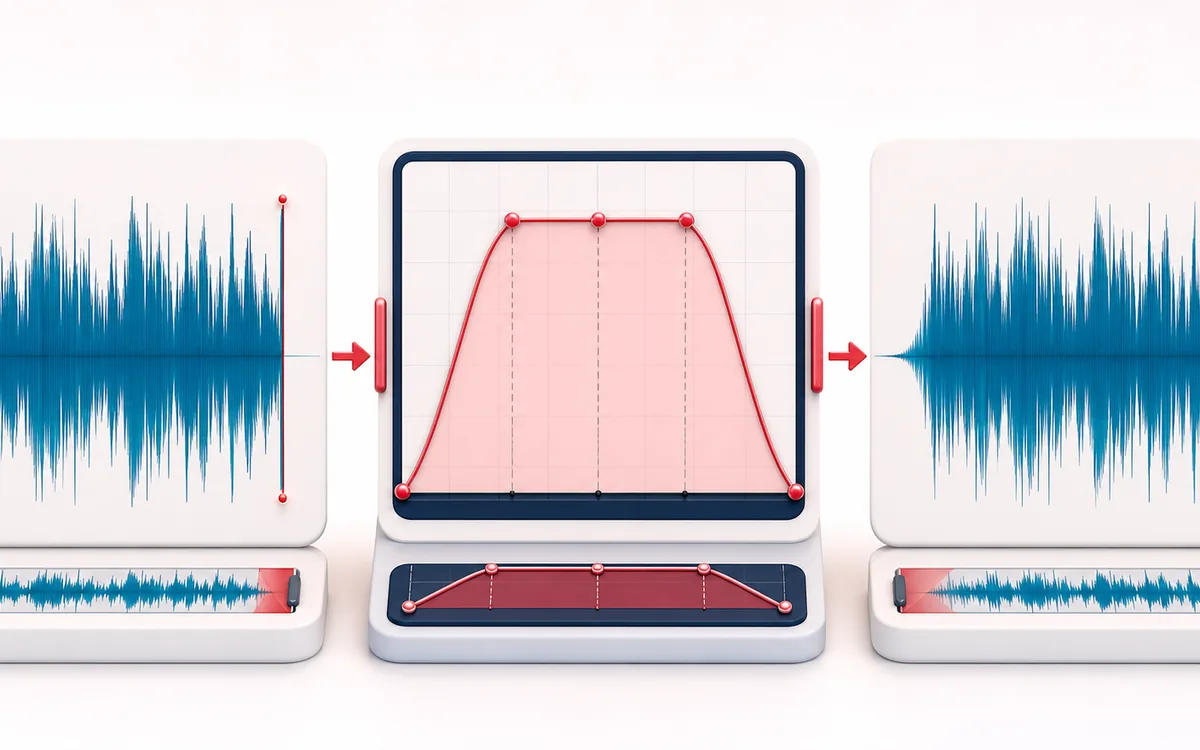
TIMELINE MAP
Volume Automation Lane
Turn one long waveform into deliberate boundaries. The visual emphasizes the selection, transition and resulting edit so that timing decisions remain obvious before anything is rendered.
Open the full signal breakdownBest source, processing logic, limits and three-pass listening check
- Full audio file
Start with the right material
Smooth intros and outros, ducking a known passage by hand, building swells and applying exact gain automation to one complete file.
- Draw gain envelope
Understand the transformation
Editable time/gain points are normalized to exact decoded sample frames, then each segment applies its selected linear-amplitude, equal-power-like or smooth S-curve gain interpolation.
- Faded output
Verify the usable result
Original, processed and difference previews plus WAV/MP3 export and a receipt for normalized points, curve segments, peaks, clipping, gain activity and exact output dimensions.
Where this workflow stops
This edits one file’s gain envelope; it does not trim duration, automatically detect phrases or crossfade two separate files. Positive gain can clip, and compressed exports are re-encoded.
Make the final decision by ear
- Zoom into every boundary and listen across it, not only inside it.
- Leave intentional handles when another editor will continue the work.
- Verify exact duration and ordering after the final render.
- Input
- One audio file in a format the current browser can decode.
- Envelope controls
- Fixed start and end positions, bounded intermediate points, −∞ to +12 dB gain and a curve for each segment.
- Output
- A full-duration processed preview, difference preview, exact-frame receipt and locally rendered WAV or MP3.
How to fade in or fade out audio online
- Select an audio file. It is decoded locally into PCM samples and shown as one whole-file waveform.
- Choose Fade in, Fade out or Fade in + out for a quick editable envelope, or add your own automation points.
- Move points by dragging or enter exact times and gains. Choose Linear amplitude, Equal-power-like or Smooth S-curve for each following segment.
- Render the full file, compare original, processed and difference previews, inspect the measured receipt and download WAV or MP3.
Quick answer: a fade is gain automation. This editor multiplies each decoded sample by the envelope value for its exact frame. The output keeps the complete decoded timeline; no samples are trimmed or moved.
A full volume envelope, not only two edge sliders
A basic edge fade usually provides one duration at the beginning and one at the end. That is useful for quick trimming workflows, but it cannot describe a level ride in the middle of a recording. Audio Fade In & Fade Out treats the complete file as an editable automation lane. Start and end positions stay anchored, while intermediate points can be added, edited, removed and dragged anywhere inside the decoded duration.
Each point carries a gain value. Set a point to −90 dB for digital silence, use 0 dB for unity gain or raise it as high as +12 dB when a section needs a deliberate boost. Positive gain does not create headroom: it can push samples beyond full scale. The measured receipt reports the floating-point output peak and counts samples and frames at or above full scale before export.
Point times are normalized to exact decoded sample frames. If multiple requested points round onto the same frame, the last requested point wins deterministically for that frame gain and the curve that follows. The receipt retains the merged point IDs so the normalization is visible instead of silently hidden.
Linear, equal-power-like and smooth fade curves
- Linear amplitude
- Moves between the two linear gain values at a constant rate. It is mathematically direct, but a fade can sound faster near the quieter end because hearing is not linear.
- Equal-power-like
- Uses a sine-shaped rise or cosine-shaped fall between point gains. It often keeps more perceived energy through a transition, but it is still one-file gain automation rather than a two-source equal-power crossfade.
- Smooth S-curve
- Uses cubic smoothstep interpolation. The gain change eases away from the first point and eases into the next, which can make longer level rides feel less abrupt at their boundaries.
No curve is automatically best. A short fade on a transient, a long music outro and a dialogue level ride can need different shapes. Listen in context and inspect both the waveform and receipt. Curve names describe the implemented amplitude math, not a guarantee of equal perceived loudness for every source.
Volume envelope versus trimming and crossfading
- Volume envelope
- Changes gain across one complete file. Duration, decoded sample rate, channels and frame count stay the same.
- Audio Trimmer
- Keeps or removes a time range. Use it when material should be cut from the beginning, end or selection rather than merely turned down.
- Crossfade
- Overlaps two separate clips while one fades out and the next fades in. This single-file tool has no second source and therefore does not create a clip-to-clip crossfade.
- BalanceDAW
- Use a multitrack timeline when separate clips must overlap, automation must follow several tracks or edits need to move surrounding material.
What the three previews prove
Original plays the browser-decoded source. Processed plays the complete rendered file after every envelope segment. Difference is processed minus original, sample by sample. The difference is silent where gain remains exactly at unity and contains the removed or added component elsewhere. It can sound unusual and is an inspection aid, not a promise of codec-perfect cancellation after export.
The receipt records requested and normalized points, every segment frame range and curve, input and output peaks, exact output shape, clipping, and the shares of frames that were attenuated, boosted or left at unity. These measurements describe decoded floating-point PCM. They do not measure LUFS, true peak, audibility or artistic quality.
Useful fade and automation workflows
- Music intros and outros: create a smooth opening from silence, a controlled ending or both while keeping the complete file length.
- Podcast and dialogue rides: turn a noisy pause down, lift a quiet phrase carefully or draw several level changes without cutting time.
- Sound-design tails: shape ambience, drones and effects with multiple stages instead of one straight end fade.
- Video-aligned audio: preserve exact decoded duration when changing level so the soundtrack remains aligned with an existing picture timeline.
Limits and safety checks before export
- No limiter: boosted points can clip. Lower the envelope when the measured floating-point peak reaches or exceeds 0 dBFS unless clipping is intentional.
- No loudness matching: point gain and sample peak are not LUFS, perceived loudness or broadcast compliance measurements.
- Decoded PCM: browser decoding can resample input. The receipt preserves the runtime sample rate and frame count, not necessarily untouched container metadata.
- WAV versus MP3: WAV avoids another lossy encoding pass but remains a new PCM render. MP3 is a lossy local re-encode and may add codec delay or artifacts.
- Memory guard: processed and difference previews require two additional full PCM buffers. Work above 256 MiB on a mobile viewport or 512 MiB on desktop is refused before allocation.
- Rights: edit and publish only recordings you created or are allowed to use. A fade does not grant copyright or distribution permission.
Privacy: selected audio is processed in this browser and is not uploaded to AudioWrench. Normal page assets and the same-origin MP3 encoder can still be requested as described in the privacy notice.
Audio Fade In & Fade Out: quick answer and technical limits
Quick answer: A local full-duration volume-envelope editor for drawing fade-ins, fade-outs and multi-point gain changes without trimming or changing the file length.
- Best for
- Smooth intros and outros, ducking a known passage by hand, building swells and applying exact gain automation to one complete file.
- How it works
- Editable time/gain points are normalized to exact decoded sample frames, then each segment applies its selected linear-amplitude, equal-power-like or smooth S-curve gain interpolation.
- What you get
- Original, processed and difference previews plus WAV/MP3 export and a receipt for normalized points, curve segments, peaks, clipping, gain activity and exact output dimensions.
Know before you use it: This edits one file’s gain envelope; it does not trim duration, automatically detect phrases or crossfade two separate files. Positive gain can clip, and compressed exports are re-encoded.
Privacy: Selected audio is processed in this browser and is not uploaded to AudioWrench. Normal page assets can still be requested as described in the privacy notice. Privacy details →