Audio Censor & Bleep Tool
Censor words or sensitive moments without uploading the recording. Mark multiple regions on the waveform, bleep, mute or reverse them, tune the edit and export a full-length WAV or MP3 with a measured receipt.
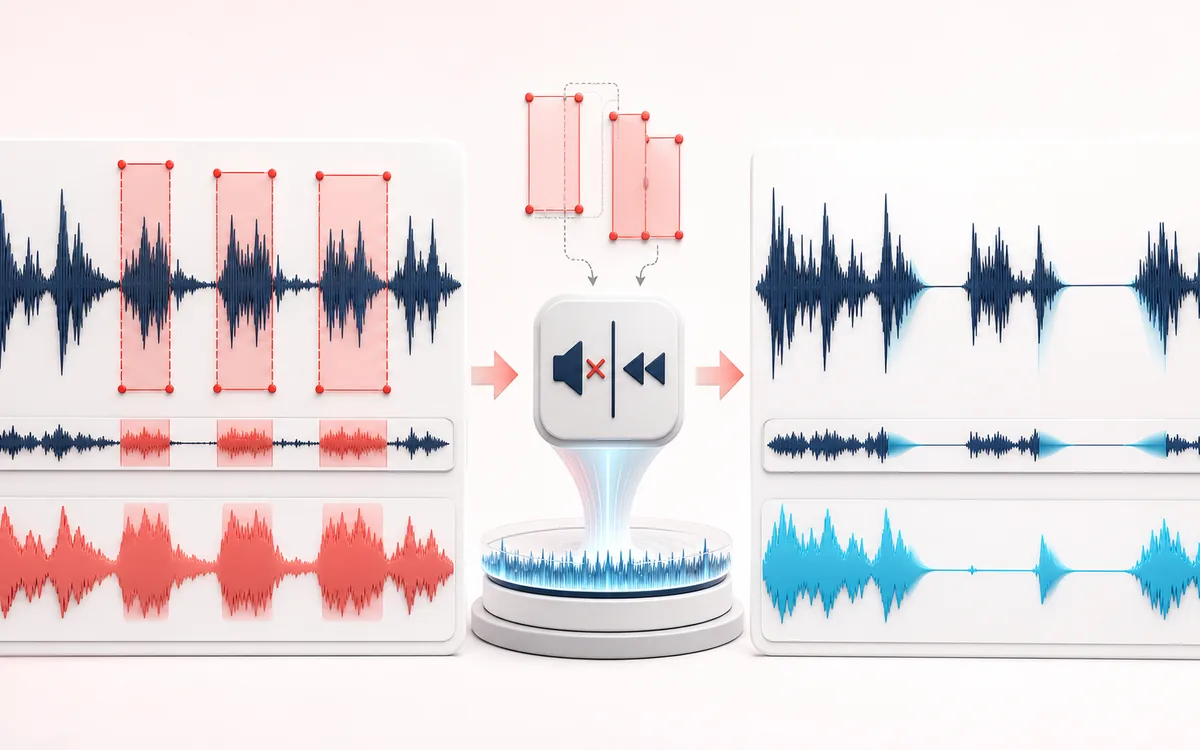
TIMELINE MAP
Censor Region Track
Turn one long waveform into deliberate boundaries. The visual emphasizes the selection, transition and resulting edit so that timing decisions remain obvious before anything is rendered.
Open the full signal breakdownBest source, processing logic, limits and three-pass listening check
- Spoken source
Start with the right material
Podcast profanity edits, radio-safe clips, interview redaction drafts and comedic bleeps where the editor knows the exact timestamps.
- Bleep mute or reverse
Understand the transformation
Requested regions are validated and overlapping ranges are merged. The chosen sample frames are replaced, muted or reversed with bounded edge fades before local export.
- Censored render
Verify the usable result
A previewable WAV/MP3 file plus a receipt for merged region count, total censored time, mode, settings, exact output frames, peak and clipping.
Where this workflow stops
The tool does not detect words, speakers or private information automatically. Editors must mark every region themselves and listen through the complete result before publishing.
Make the final decision by ear
- Zoom into every boundary and listen across it, not only inside it.
- Leave intentional handles when another editor will continue the work.
- Verify exact duration and ordering after the final render.
- Input
- One audio file in a format your current browser can decode.
- Censor controls
- Multiple start/end regions, Bleep, Mute or Reverse mode, bleep frequency and level, plus boundary fades.
- Output
- A same-duration full-file preview, locally rendered WAV or MP3 and a receipt for the edits actually applied.
How to censor audio online
- Select the podcast, interview, video soundtrack or other recording you are allowed to edit.
- Listen closely and mark the exact start and end of each word or passage on the waveform. Add as many regions as needed.
- Choose Bleep, Mute or Reverse. For a bleep sound over words, set the tone frequency and level; use short fades to soften edit boundaries.
- Render the full file, review the measured receipt, listen through the entire result and download WAV or MP3.
Important: this is a manual podcast profanity editor, not automatic speech recognition. It cannot find profanity, names, phone numbers, private information or other words for you. You are responsible for marking every region and checking the complete output before release.
Choose Bleep, Mute or Reverse for each censor pass
- Bleep
- Replaces selected regions with a tone. Adjust frequency for pitch and level for loudness, then listen in context so the tone covers the source without becoming unnecessarily harsh.
- Mute
- Turns the selected samples down to silence. Edge fades help reduce abrupt jumps, but room tone may still change noticeably around the muted passage.
- Reverse
- Reverses the samples inside each selected region while leaving its position and duration unchanged. Speech can remain partly recognizable, so do not assume reversal safely hides private information.
All three modes preserve the overall timeline. The tool merges overlapping regions before processing so intersecting timestamp ranges become one continuous censor edit rather than modifying the same samples repeatedly.
Precise waveform boundaries for multiple words
Each region has start and end timestamps tied to the decoded waveform. Use the visual shape for orientation, then rely on listening to refine consonants, breaths and word boundaries. A selection that begins too late can leave the opening sound audible; one that ends too early can expose the final syllable.
Short fades smooth the transition into and out of a changed region. They reduce clicks caused by sudden sample discontinuities, but they do not guarantee that a censor edit is inaudible. Speech, background music, ambience and reverb can continue across a boundary, which is why the whole edited passage needs an auditory check.
Measured receipt: after rendering, use the receipt to verify the number of requested and merged regions, total censored duration, chosen mode, output duration, peak and clipping status. Measurements confirm what was processed; they do not certify that every sensitive word was found.
Audio Censor versus Trimmer, Silence Remover and BalanceDAW
- Audio Censor
- Changes manually selected moments while preserving the original full-file timing. Use it for a bleep sound, muted profanity or a reversed passage.
- Audio Trimmer
- Keeps or removes a range and changes the program length. Use it to cut an intro, ending or unwanted section rather than cover words in place.
- Silence Remover
- Finds low-level passages from an amplitude threshold and shortens or removes them. It does not understand profanity and is not designed to censor spoken words.
- BalanceDAW
- Use the studio for detailed multitrack timelines, replacement audio, manual automation, complex fades or edits that need to move surrounding material.
Common censor-audio workflows
- Podcast profanity editing: mark explicit words manually, choose a consistent bleep or mute treatment and check the finished episode from beginning to end.
- Interviews and case studies: cover a name or identifying phrase when you have permission to edit the recording, while remembering that adjacent context may still reveal the person.
- Video and livestream replays: prepare a same-duration edited soundtrack that stays aligned with the picture after the censor regions are rendered.
- Radio-safe or classroom versions: make an alternate edit of material you have rights to use, then verify that every required passage was handled under the relevant publishing rules.
Limits and safety checks before publishing
- No automatic word or PII detection: the tool does not transcribe, identify speakers or locate profanity, names, addresses, account details or other personal data. Manual region selection can miss content.
- Reversal is not secure redaction: reversed speech can sometimes be understood or reversed again. Use a bleep or mute where the underlying information must not remain intelligible, and assess the full context separately.
- Listen to the entire export: waveform boundaries and receipts help verify timing, but neither proves that every target was selected or fully covered.
- Browser decode and resampling: format support varies by browser, and decoding can resample the input to the browser audio runtime rate. The result is a new render, not a bit-perfect container edit.
- WAV versus MP3: WAV avoids another lossy encoding stage but can be much larger. MP3 is a lossy local re-encode that can add codec artifacts even though the audio is not uploaded.
- Memory limits: the complete file is decoded to uncompressed audio in memory. Long, high-rate or multichannel recordings can exceed the practical capacity of a phone or low-memory browser.
- Rights and consent: use recordings you created or have permission to edit and publish. Censoring part of a recording does not grant copyright, privacy, publicity or distribution rights.
Privacy: the selected audio is processed in this browser and is not uploaded to AudioWrench. Normal page assets and same-origin encoder code can still be requested as described in the privacy notice.
Audio Censor & Bleep Tool: quick answer and technical limits
Quick answer: A local waveform editor that applies a bleep tone, silence or reversed audio to one or more marked time ranges without changing the full-file duration.
- Best for
- Podcast profanity edits, radio-safe clips, interview redaction drafts and comedic bleeps where the editor knows the exact timestamps.
- How it works
- Requested regions are validated and overlapping ranges are merged. The chosen sample frames are replaced, muted or reversed with bounded edge fades before local export.
- What you get
- A previewable WAV/MP3 file plus a receipt for merged region count, total censored time, mode, settings, exact output frames, peak and clipping.
Know before you use it: The tool does not detect words, speakers or private information automatically. Editors must mark every region themselves and listen through the complete result before publishing.
Privacy: Selected audio is processed in this browser and is not uploaded to AudioWrench. Normal page assets can still be requested as described in the privacy notice. Privacy details →