Audio Converter.
Turn browser-supported audio into WAV or MP3 with the bitrate, sample rate and channel layout you need, without uploading the selected file to AudioWrench.
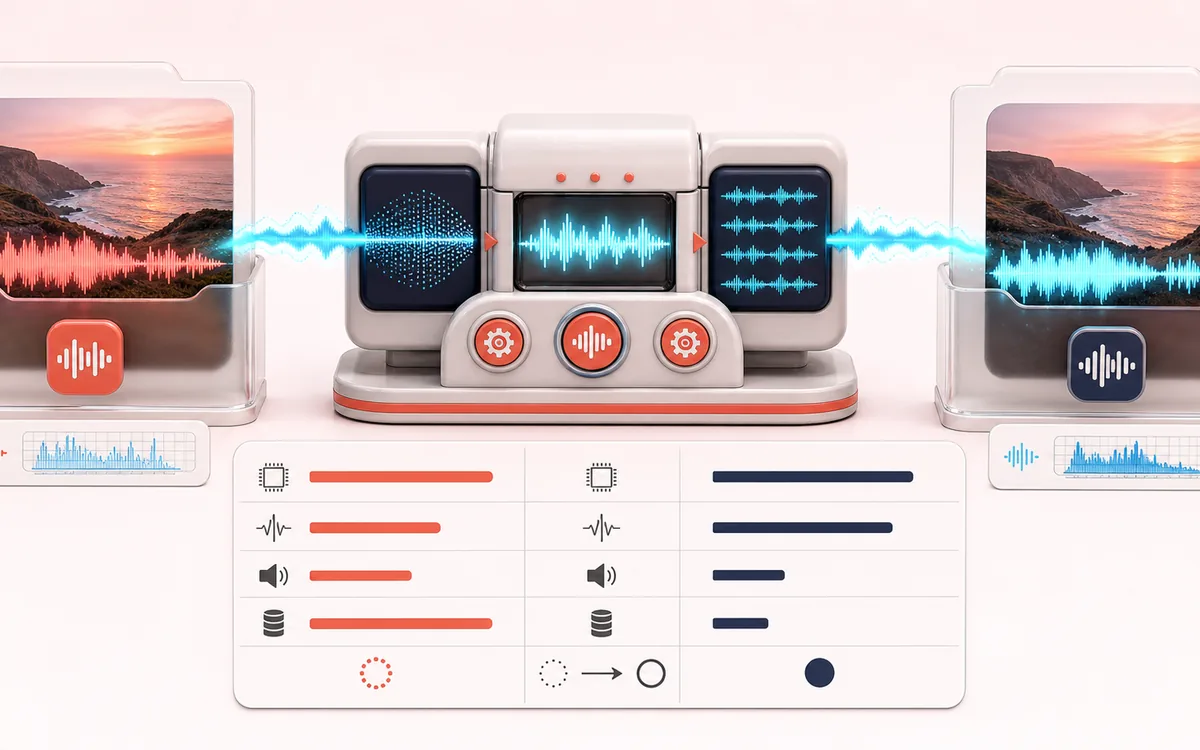
FILE STRUCTURE MAP
Format Conversion Route
Follow audio, metadata and delivery as separate layers. Container work is easier to trust when decoded audio, editable fields and the final export are shown as distinct stages with explicit preservation limits.
Open the full signal breakdownBest source, processing logic, limits and three-pass listening check
- Source audio file
Start with the right material
Preparing a compatible WAV, shrinking a source to MP3 or making a mono speech file.
- Decode and encode
Understand the transformation
The browser decodes to PCM, then JavaScript resamples, downmixes if requested and re-encodes the result.
- Converted file
Verify the usable result
MP3 at the available bitrate settings, or 16-bit/32-bit-float WAV depending on the chosen option.
Where this workflow stops
Input support depends on the browser, and the tool does not write FLAC, AAC or OGG. Lossy-to-lossy conversion adds generation loss and long files are memory-limited.
Make the final decision by ear
- Keep the untouched original until the exported file is verified.
- Confirm sample rate, channels, duration and metadata independently.
- Test the delivery in the application or device that will consume it.
How to convert audio online
- Drop your file into the upload box — the converter shows its duration, sample rate and channel count.
- Choose the output format: MP3, 16-bit WAV or 32-bit float WAV, plus the MP3 bitrate if relevant.
- Optionally resample (48 000, 44 100 or 22 050 Hz) or mix stereo down to mono.
- Press Convert & Download — the finished file lands straight in your downloads.
This audio converter works inside your browser: the source is decoded with browser codecs, optionally resampled or mixed to mono, then encoded as MP3 or written as WAV. Output is limited to MP3 and WAV; it does not write AAC, FLAC or OGG. Inputs have a 200 MB cap, and codec support, speed and practical duration depend on the browser and available device memory.
Use it to shrink WAV recordings into shareable MP3s, convert browser-decodable FLAC or M4A sources to MP3/WAV, prepare 44.1 kHz files, or make mono versions of stereo recordings. For a video source, use Video to Audio to decode and re-encode its soundtrack first.
Audio Converter: quick answer and technical limits
Quick answer: A local audio transcoder that decodes any browser-supported source and writes MP3 or WAV with selected rate and channel settings.
- Best for
- Preparing a compatible WAV, shrinking a source to MP3 or making a mono speech file.
- How it works
- The browser decodes to PCM, then JavaScript resamples, downmixes if requested and re-encodes the result.
- What you get
- MP3 at the available bitrate settings, or 16-bit/32-bit-float WAV depending on the chosen option.
Know before you use it: Input support depends on the browser, and the tool does not write FLAC, AAC or OGG. Lossy-to-lossy conversion adds generation loss and long files are memory-limited.
Public browser workflow evidence
Question: Can the real UI turn a stereo 48 kHz WAV into a mono 22.05 kHz float32 WAV while preserving duration and both authored tones at the expected downmix levels?
Observed result: The two-second stereo fixture became a 22,050 Hz mono float32 WAV (176,444 bytes); both authored tones remained at the expected downmix levels.
Evidence boundary: This case covers WAV-to-WAV conversion, one downmix and one output rate. MP3 encoding and every browser-decodable input codec remain outside this wave.
Network observation: No audio-payload or cross-origin requests were observed during this published workflow.
Privacy: Selected audio is processed in this browser and is not uploaded to AudioWrench. Normal page assets can still be requested as described in the privacy notice. Privacy details →