Learn · Musical pulse and current click-track export
Use a metronome. Choose what BPM counts.
A number such as 120 BPM is incomplete without its pulse unit. This guide takes one rhythm from tempo and meter through deliberate practice to a reusable click-track file, so a label change cannot silently become a different bar length.
Step by step: one defined bar from controls to file
- Set the rhythm while stopped. Choose the Time signature, then read BPM pulse unit. The default is 4/4, quarter note, 120 BPM, one click per pulse, first-pulse accent and Volume 80%. Nothing plays until you press Play metronome.
- Name the pulse before comparing tempos. Enter a whole 30–300 BPM number, move Tempo slider, use the one-BPM buttons or tap the named pulse. Read pulses per bar and seconds per bar in Read the bar.
- Add the clicks you need. Select one, two, three or four Clicks per pulse. Toggle the first-pulse accent. These are relative divisions of the current pulse, not fixed note-value labels.
- Play intentionally and check the count. Numbered pulses and the text position follow the audio clock. Volume 0 is silent practice, not a broken Play button. Stop all audio or Escape cancels the owned graph; changing rhythm restarts at pulse 1.
- Save complete bars. Set Bars in the file, check the computed duration and Volume, then Download WAV, Download MP3 or Continue editing. Playback is not required. If settings change during encoding, the obsolete file is discarded rather than labeled as your new rhythm.
BPM counts a note value, not every sound you hear
At quarter-note 120 BPM, one quarter-note pulse lasts half a second. Adding two clicks per pulse does not double the selected BPM: it places a second sound halfway through that same pulse. A tempo marking based on a dotted quarter note counts a different span of notation.
Steinberg’s tempo-equation documentation describes changing the beat unit between meters. In particular, the dotted-quarter unit often associated with 6/8 is distinct from the quarter unit in 3/4. Read the unit written in the music or agreed with the other musicians; this tool cannot infer it from an audio file.
Pulse seconds = 60 ÷ BPM
Bar seconds = pulses per bar × pulse seconds
For a simple /4 meter, this implementation uses quarter-note pulses. In 6/8 you can choose dotted quarter, eighth or quarter. In 7/8 it counts seven equal eighth-note pulses. The numerator is not automatically the number of larger beats you feel in a compound meter.
Count the meter with explicit examples
On a narrow screen, scroll the tables sideways. With a keyboard, focus a named table and use the arrow keys.
| Meter and unit | Pulses per bar | Bar length | What to count |
|---|---|---|---|
| 2/4 · quarter | 2 | 1.000 s | Two quarter-note pulses. |
| 3/4 · quarter | 3 | 1.500 s | Three quarter-note pulses. |
| 4/4 · quarter | 4 | 2.000 s | Four quarter-note pulses. |
| 5/4 · quarter | 5 | 2.500 s | Five quarter-note pulses. |
| 6/8 · dotted quarter | 2 | 1.000 s | Two larger pulses; three equal clicks per pulse produces six eighth-note positions. |
| 6/8 · quarter | 3 | 1.500 s | Three quarter-length pulses, not the usual two dotted-quarter grouping. |
| 6/8 · eighth | 6 | 3.000 s | Six equal eighth-note pulses. |
| 7/8 · eighth | 7 | 3.500 s | Seven equal eighth-note pulses. A 2+2+3 grouping is not automatically accented. |
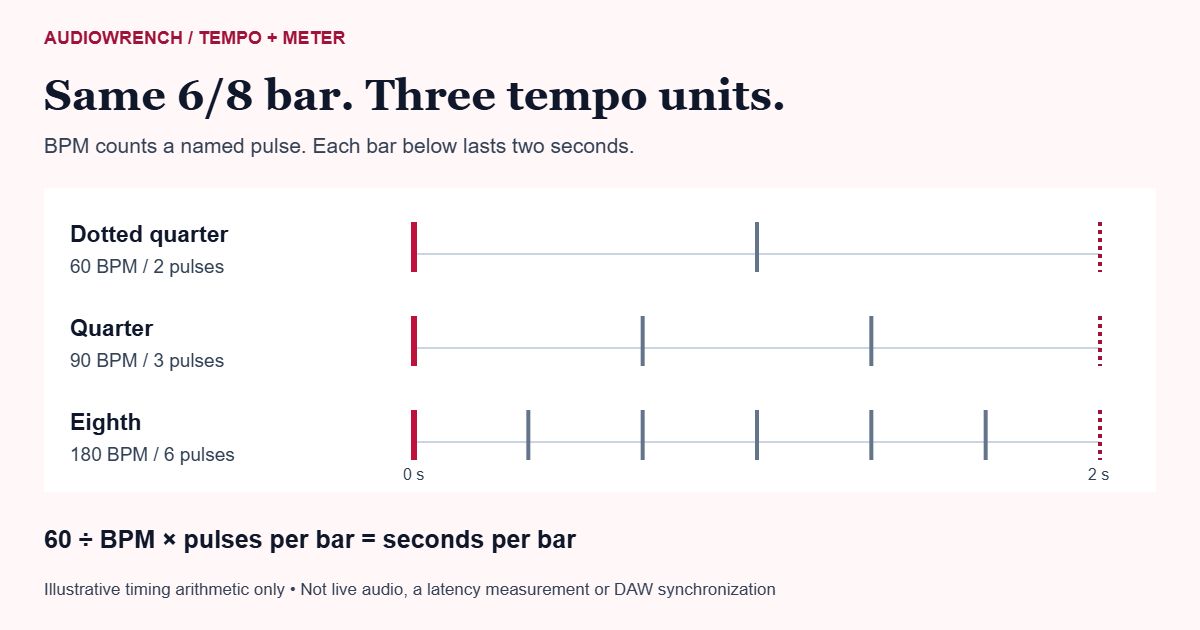
The three 6/8 rows use the same number 120 with different units, so they describe different speeds. To describe the same two-second 6/8 bar, change the number with the unit:
| Pulse unit | BPM | Pulses in 6/8 | Bar duration |
|---|---|---|---|
| Dotted quarter | 60 | 2 | 2.000 s |
| Quarter | 90 | 3 | 2.000 s |
| Eighth | 180 | 6 | 2.000 s |
6/8 now defaults to two dotted-quarter pulses. If you previously counted six equal ticks at 120 in this tool, select Eighth note at 120 to preserve that three-second bar. Do not silently compare that setting with dotted-quarter 120.
Subdivision is relative to the selected pulse
- 1 click
- Only each named pulse sounds. In dotted-quarter 6/8, that means two main clicks per bar.
- 2 clicks
- Two equal halves of the pulse. For a quarter-note pulse they fall on eighth-note positions; for a dotted-quarter pulse they describe different note values.
- 3 clicks
- Three equal thirds. For a quarter pulse this is a triplet division; for a dotted-quarter pulse it lands on three eighth-note positions.
- 4 clicks
- Four equal quarters of the selected pulse. For a quarter pulse this gives sixteenth-note positions.
The first-pulse accent uses the stronger, higher generated click. Other pulses share a second click; between-pulse divisions are quieter. Turning the accent off removes the stronger bar-start click, not the bar count. This is a defined synthetic sine-click palette, not recorded percussion or a custom accent-group sequencer.
Practice a count you can explain
Choose a short passage and a tempo at which you can maintain the intended count. Listen to a bar before entering, then compare your note placement with the named pulse and subdivisions. If the part becomes uneven, lower the tempo and isolate the change rather than adding more clicks without understanding their unit. These are practice suggestions, not a measured promise that this tool improves anyone’s performance.
Tap tempo is an estimate from your last six taps, using their average interval. A gap over four seconds begins a new set; very fast repeat taps under 100 milliseconds are ignored. The result is rounded to a whole BPM and constrained to 30–300. Tap quarters, dotted quarters or eighths deliberately according to the selected unit. It is not automatic BPM detection.
Rhythm changes restart a playing loop from pulse 1; volume changes retain the loop position. The plan shows generated onset locations for one bar. The live position is calculated from the audio clock, not an independent flashing timer. A screen can still refresh late while the native loop continues.
Export a click track that matches this bar
The file contains 1–16 complete bars, limited to 120 seconds. At slow tempos the allowed bar count becomes smaller; the page asks you to reduce it rather than silently trimming your chosen bars. The default 4/4 quarter-note 120 BPM pattern spans two seconds per bar, so eight bars is a 16-second file.
WAV: 44.1 kHz, 16-bit stereo, with identical left and right samples. The source pattern’s bar length and click onsets are rounded to 44.1 kHz samples. This introduces tiny quantization relative to the ideal formula; it is not a claim of exact physical timing on every output device. No leading silent count-in, whole-file fade or automatic peak boost is inserted. The per-click attack and decay belong to the generated sound.
MP3: the current PCM is encoded locally at 320 kbps. It is lossy, so decoded samples differ. Encoder delay and the destination player can affect the beginning or repeat boundary; LAME’s delay documentation explains why compensation matters. Choose WAV for a PCM timing reference and check the actual destination rather than assuming every MP3 player loops without a gap.
Volume: the same gain is used for playback and the file. With all rhythm settings unchanged, 80% has eight times the digital amplitude of 10%, not eight times the perceived loudness. Volume 0 is genuine silent practice; raise it before exporting an audible click track. System volume changes what you hear, not the file samples.
Continue editing: prepares the same WAV for the existing local workspace. If browser storage succeeds, the navigator opens and you can choose the next tool. The output remains on this device for up to 24 hours, subject to storage availability; it is not uploaded to AudioWrench. A storage error leaves normal downloads available.
Import without changing the meaning of BPM
Place the WAV’s first sample at the intended bar start in your editor. Do not time-stretch it merely because the project shows the same bare BPM number. Check the project’s tempo unit and bar grid: dotted-quarter 120 in 6/8 corresponds to quarter-note 180, not quarter-note 120. WAV sample-rate conversion by an editor should preserve duration, but stretching, trimming or adding fades can change the reference. Confirm at least two bar starts in the destination.
This is an audio file, not a MIDI clock, tempo map or live DAW synchronization connection. It neither records your instrument nor measures the latency between a microphone and the click. A count-in, if needed, must be arranged explicitly in your recording workflow.
Fix the specific symptom
- No sound: check Volume, device output and system volume. Volume 0 is explicitly labeled silent. If audio cannot start, the page keeps your settings and offers Play metronome again; Stop all audio cancels a pending attempt.
- The meter seems three times faster: compare the pulse unit before comparing BPM. Dotted-quarter and eighth-note 120 in 6/8 are not the same speed.
- Dots lag while the tab is busy: graphics depend on screen updates. A native looping buffer owns the audio; a late display update does not create a queue of past clicks.
- The phone stops or pauses: a hidden tab may continue playback, but device sleep, browser policies and operating-system suspension can pause the audio clock. There is no uninterrupted-background-playback guarantee. Leaving the page stops it; returning does not autoplay.
- Bluetooth feels delayed: the hardware output path adds latency. The on-screen phase is not a measurement of when sound reaches your ears. Use the actual destination to judge alignment.
- A file was discarded: settings changed while encoding. Wait for that bounded job to finish, then export the current values. The old file is not silently relabeled.
- BPM or bars is invalid: correct the field-local message. No out-of-range tempo or partial-bar export is silently substituted.
MDN’s looping-buffer documentation describes the native playback source. Its audio-clock reference explains the scheduling timebase; it is distinct from screen refresh, network time or a calibrated physical output measurement.
Sources and review notes
Worked musical timing and current-file examples, not a measured practice benefit or a DAW sync guarantee. The image is an arithmetic illustration; real tool onset marks are generated from its bar model. Hardware, display, suspension and MP3 delay remain limitations.
- Steinberg Dorico: tempo equations — The note value of a metronome mark is explicit; dotted-quarter and quarter units in different meters are not interchangeable bare BPM numbers.
- MDN: AudioBufferSourceNode — Native memory-buffer playback, looping and stop; not a device-latency calibration.
- MDN: BaseAudioContext currentTime — Audio scheduling timebase, not a screen, network or wall-clock promise.
- LAME: encoder delay documentation — Encoder delay and compensation; no universal sample-continuous MP3 repeat guarantee.
Take the next useful step
Use BPM Detector to inspect a recording’s tempo estimate, not to decide its notation unit automatically. For a custom pattern, use Euclidean Rhythm Generator. Read the tempo and key guide for the existing analysis workflow.