Learn · Generated sound, not a clinical assessment
Using online hearing test tones.
A browser can generate a chosen frequency. It cannot tell how much sound reaches your ear or turn a frequency cutoff into a diagnosis. Here is how to use the controls deliberately, stop every source and understand exactly what an answer record means.
Set up, step by step: a listening experiment
- Choose the playback setup. Use a quiet setting and a low, comfortable system volume. Check the correct output device. Headphones can help isolate channels, but their frequency response, fit and processing still affect the sound.
- Choose settings while stopped. In Tone generator, set Frequency, Volume, waveform and Left channel, Both channels or Right channel. Changing these settings while stopped does not emit a confirmation tone. Volume 0 mutes all three playback modes.
- Start one source explicitly. Use Play tone, Start sweep (10 s) or Start range check. Starting another source retires the previous one; it should not add a second tone underneath it. A generator tone auto-stops after 30 seconds.
- Stop and interpret. Stop all audio or Escape stops every source. Stop check cancels a range check without inventing a result. Hiding or leaving the page stops sound; returning does not restart it. Read the limitations below before treating an answer as anything beyond a setup observation.
What the controls actually change
- Frequency
- The generator uses a logarithmic 20 Hz–20 kHz scale. Equal slider distances correspond to equal frequency ratios, not equal numbers of hertz. 440 Hz is a useful mid-range reference, not a hearing-health benchmark.
- Waveform
- Sine, Square, Sawtooth and Triangle are Web Audio oscillator shapes. Non-sine waves include additional harmonics, so hearing a component of a complex wave does not establish that you heard its nominal fundamental. The sweep and range check use sine waves regardless of the generator’s waveform selection.
- Channel
- Left, Both or Right selects the output route. Device mono-audio settings, crossfeed, headphone wiring and output processing can alter separation. This selector is a routing aid, not calibrated ear-to-ear audiometry.
- Volume
- The page applies a normalized digital gain with an 8% default and 25% control cap. Range-check tones are capped at 5% and honor a lower setting or zero. These figures are not percentages of your headphone loudness and are not dB SPL or dB HL.
- Listening controls
- Current source, Generated frequency and Time remaining describe the source the page is generating. They do not measure a speaker, microphone, ear response or acoustic exposure. The sweep frequency follows the browser audio clock; it is not an audiogram axis.
Keep the device and output settings steady if you want to compare your own observations. Changing Volume or Channel during the range check cancels that check, so a new record does not silently combine different setups. Starting the generator or sweep also cancels the active check.
Understand the ten-second sweep
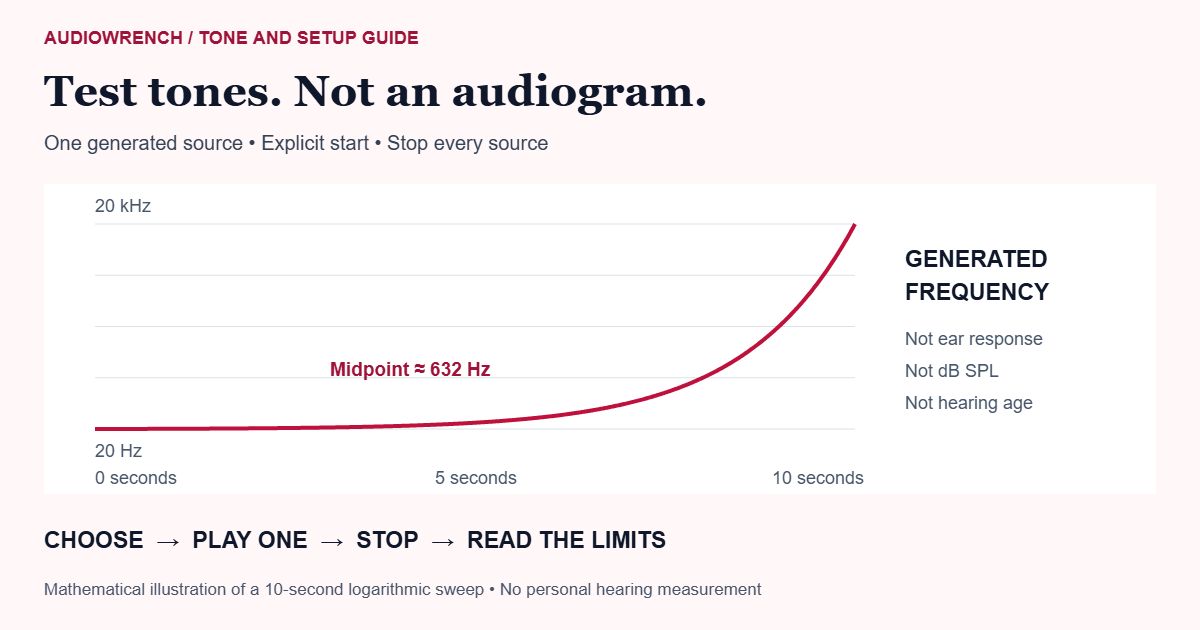
Start sweep (10 s) generates one sine that rises exponentially from 20 Hz to 20 kHz over ten seconds. Its amplitude fades at the start and end. Stop sweep, Stop all audio and Escape can interrupt it. Starting Play tone replaces it rather than layering two signals.
f(t) = 20 × 1000t / 10 Hz
t = 0 s: 20 Hz · t = 5 s: about 632 Hz · t = 10 s: 20 kHz
The halfway point is about 632 Hz, not 10 kHz: this is a logarithmic frequency journey. The endpoints are generated targets, not a promise that your device reproduces them or that every listener can hear them. At high frequencies, hardware response and processing can dominate an informal observation.
If the browser sample rate cannot represent a requested frequency below its Nyquist limit, the tool refuses to play it and shows an error. It does not silently substitute a lower tone and label it as the requested one. This refusal says nothing about your hearing.
Read the range-check answer record precisely
The ladder contains 8, 10, 12, 14, 15, 16, 17, 18, 19 and 20 kHz. Each explicit playback lasts two seconds. Replay tone replaces the previous burst; repeated clicks must not stack several bursts. After it ends, record your answer or replay it with the same setup. A playback error must be retried or stopped, not scored as a tone you did not hear.
I heard this tone records your report and moves to the next step. I did not hear this tone ends the ladder. Both the result transition and cancellation stop any remaining audio. New check clears the prior record and returns to an explicit start, not automatic playback.
On a narrow screen or with enlarged text, scroll the example table sideways. Keyboard users can focus it and use the arrow keys.
| Tone | Submitted answer | What is known |
|---|---|---|
| 8 kHz | Reported heard | An answer in this setup |
| 10 kHz | Reported heard | The highest confirmed test tone in this record |
| 12 kHz | Reported not heard | The ladder ended at this response |
| 14–20 kHz | Not tested | Unknown; not failed or diagnosed |
This record would show 10 kHz as the highest confirmed test tone. It does not prove a physiological cutoff at 10 kHz or that every higher tone would be inaudible. If the first 8 kHz tone was not confirmed, the result is No tested tone confirmed — not “your hearing is below 8 kHz.” The tool did not test the frequencies below that first step.
The visible record includes its selected channel, digital gain cap, browser sample rate and submitted answers. Copy setup result copies that context and the non-diagnostic limitation together. It does not turn the record into a clinical report. An old completed record describes its recorded setup even if you later change generator settings; start a new check for a new record.
Why a browser result is not an audiogram
The page has no calibration for your sound card, amplifier, headphones, fit or acoustic environment. A digital source level does not reveal the sound-pressure level at your ear. It also does not establish clinical thresholds at a set of calibrated test levels.
An informal high-frequency check cannot detect or rule out hearing loss, assess speech understanding, establish hearing age or identify a medical cause. The generated frequency and your response are useful facts about this particular experiment, not a diagnosis. NIDCD’s hearing-evaluation information explains when professional assessment may be appropriate.
Troubleshoot playback without chasing volume
- No sound
- Check mute, the selected output and whether you explicitly started playback. If page Volume is 0, silence is expected. Stop, inspect the output choice and try a comfortable mid-range sine if appropriate; do not compensate for an inaudible high tone by raising volume.
- Both sides sound alike
- Check device mono-audio settings and routing. A single selected channel does not override system-level mixing. Do not interpret a routing problem as an ear-health comparison.
- The tone stopped
- The two-second burst, ten-second sweep or thirty-second generator limit may have ended. Hiding the page, Escape and stop controls also stop it. Explicitly restart only when ready.
- Playback error
- No answer should be inferred. Check the error, choose a supported lower frequency if the sample-rate limit applies, or retry after checking the output. Stop remains available during a delayed browser start.
The tone workflow needs neither a microphone nor an audio upload. Its generated sound and answer record remain in the page’s memory; reloading clears the record. Copying is an explicit local clipboard action. Normal page assets can still load as described in the privacy notice; local generation is not a claim that loading the website makes no network requests.
Open the tone controls — start only when ready →Sources and review notes
This guide describes the reviewed AudioWrench controls, generated signal scheduling and scripted answer examples. It is not a clinical evaluation, calibrated hearing threshold or treatment guide. The illustration shows generated frequencies, not a person’s hearing response.
- WHO: safe listening — Listening level and exposure precautions; a page gain percentage is not an at-ear acoustic measurement.
- NIDCD: hearing evaluation — Professional hearing evaluation information, distinct from an uncalibrated browser experiment.
- NIDCD: sudden deafness — Urgent assessment guidance for sudden hearing change; a browser result must not delay care.
- MDN: scheduled audio stop — Native stop scheduling and source lifecycle; implementation checks are separate from clinical validity.
Related tools
Audio Oscilloscope inspects digital waveform samples. Its amplitudes also are not calibrated acoustic levels. Read the worked scope examples to distinguish signal shape from a listening or health conclusion.