Video to Audio.
Drop in a video and save its sound as MP3 or WAV. Your browser decodes and re-encodes the track on your device; the selected video is not uploaded to AudioWrench.
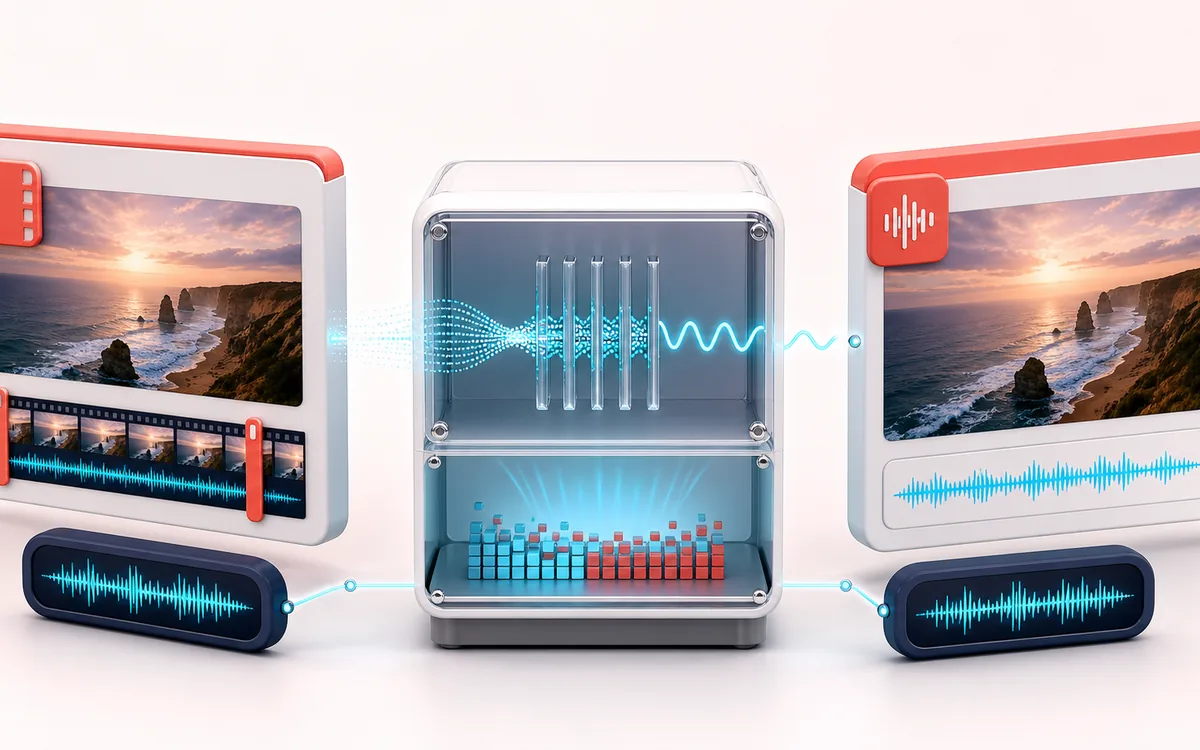
FILE STRUCTURE MAP
Soundtrack Extraction Route
Follow audio, metadata and delivery as separate layers. Container work is easier to trust when decoded audio, editable fields and the final export are shown as distinct stages with explicit preservation limits.
Open the full signal breakdownBest source, processing logic, limits and three-pass listening check
- Supported video file
Start with the right material
Saving speech, music or field audio from your own MP4, WebM or MOV source.
- Decode audio stream
Understand the transformation
The browser decodes the video’s audio to PCM; the page then re-encodes that PCM into the selected audio format.
- Standalone soundtrack
Verify the usable result
A new audio file containing the decoded soundtrack.
Where this workflow stops
This is not lossless bitstream extraction, and codec support depends on the browser. Re-encoding can change quality, and protected or unsupported files will fail.
Make the final decision by ear
- Keep the untouched original until the exported file is verified.
- Confirm sample rate, channels, duration and metadata independently.
- Test the delivery in the application or device that will consume it.
How to convert video to audio
- Drop a video file — MP4, WebM or MOV — into the upload box.
- The soundtrack is extracted on your device; the page shows the resulting duration, sample rate and channels.
- Preview the decoded audio in the player.
- Download it as a 320 kbps MP3 or an uncompressed WAV.
This video to audio converter covers the everyday MP4 to MP3 job without an upload site: your browser decodes the video's audio to PCM, then the tool encodes a new MP3 or WAV file locally. It is conversion, not lossless bitstream extraction, so codec support and output quality depend on the browser and selected format. Screen recordings, lecture captures, interviews and unreleased footage stay in the tab.
Once you have the soundtrack, the rest of AudioWrench picks up the chain: trim the highlight with the Audio Trimmer, transcribe speech with Speech to Text, or re-encode to a specific bitrate with the Audio Converter.
Video to Audio: quick answer and technical limits
Quick answer: A soundtrack converter that decodes audio from a browser-supported video file and re-encodes it as an audio download.
- Best for
- Saving speech, music or field audio from your own MP4, WebM or MOV source.
- How it works
- The browser decodes the video’s audio to PCM; the page then re-encodes that PCM into the selected audio format.
- What you get
- A new audio file containing the decoded soundtrack.
Know before you use it: This is not lossless bitstream extraction, and codec support depends on the browser. Re-encoding can change quality, and protected or unsupported files will fail.
Privacy: Selected audio is processed in this browser and is not uploaded to AudioWrench. Normal page assets can still be requested as described in the privacy notice. Privacy details →